AI Prompt Manager for Mac
Build your prompt library for ChatGPT, Claude, Gemini — write structured Markdown prompts and keep them organized with folders and tags. Copy instantly with keyboard shortcuts or Quick Access Window. Offline-first, no cloud.
- Markdown editor with live preview
- Folders, tags, and instant search
- Configurable hotkeys + Quick Access Window
- Works without an internet connection
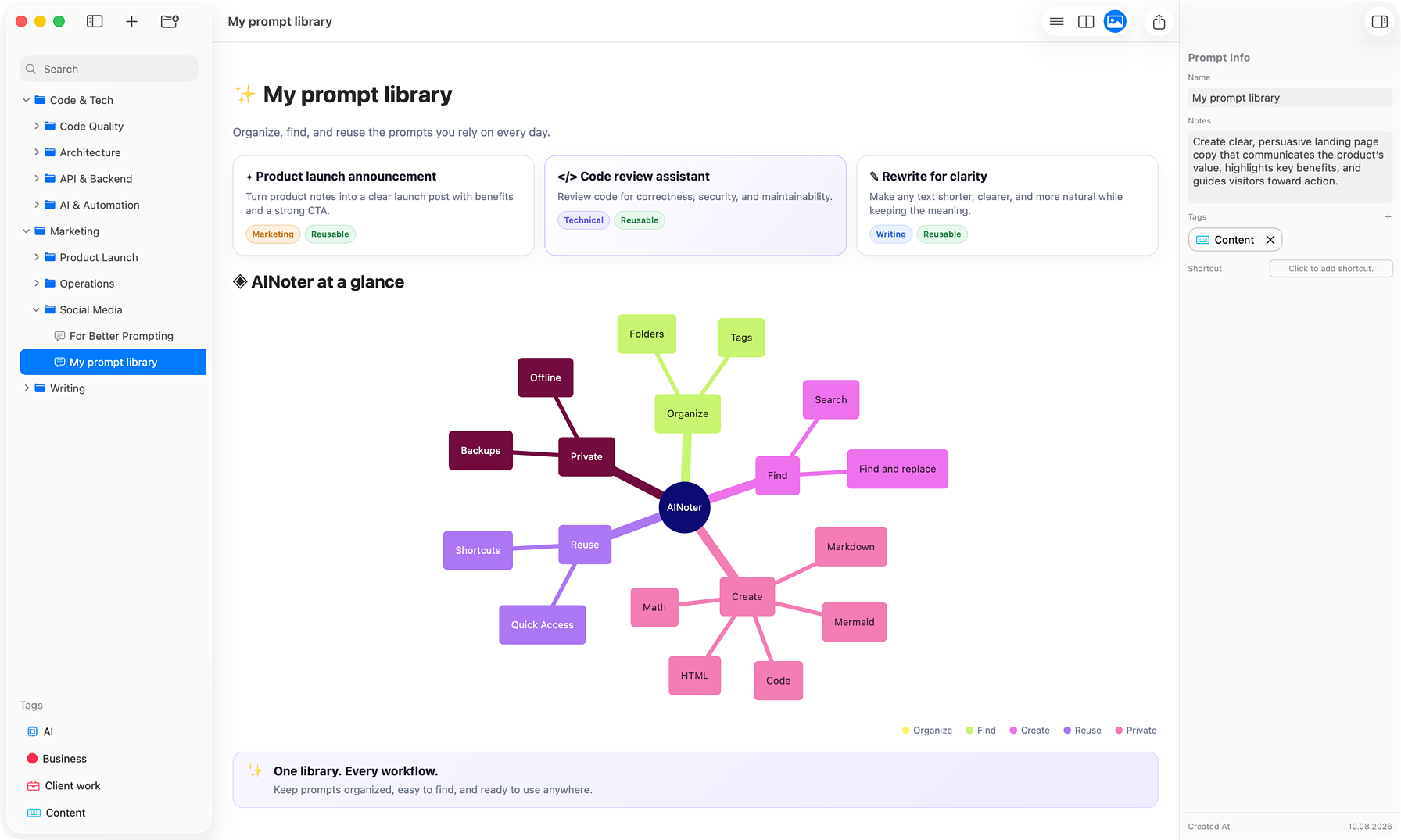
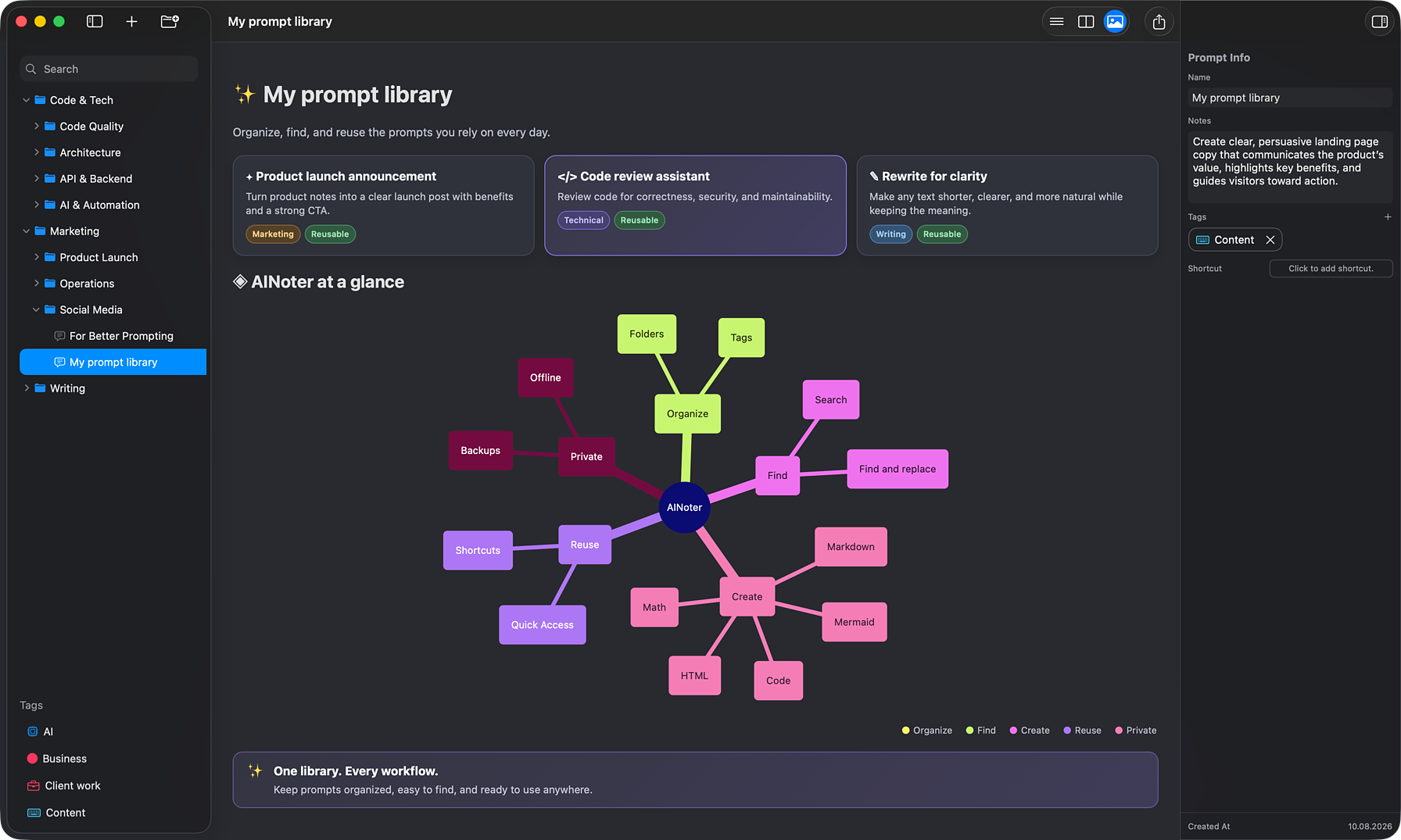
How to Save and Reuse AI Prompts
Three simple steps to build your prompt library.
Create
Save prompts in seconds and keep them ready to reuse anytime.
Find
Folders, tags, and search help you find the right prompt the moment you need it.
Copy
Copy with a shortcut or Quick Access, then paste into any app.
Prompt Editor
Keep complex prompts easy to maintain
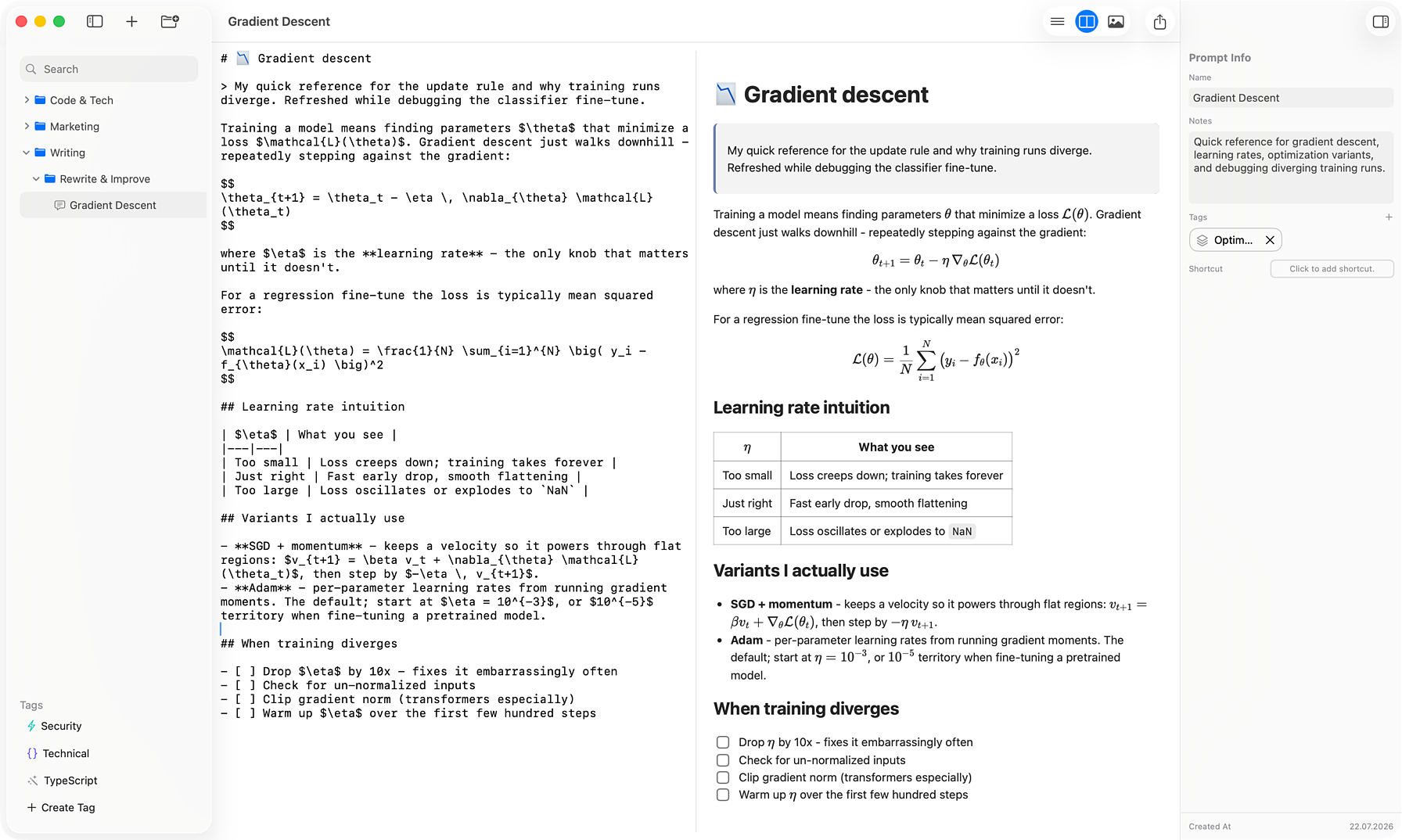
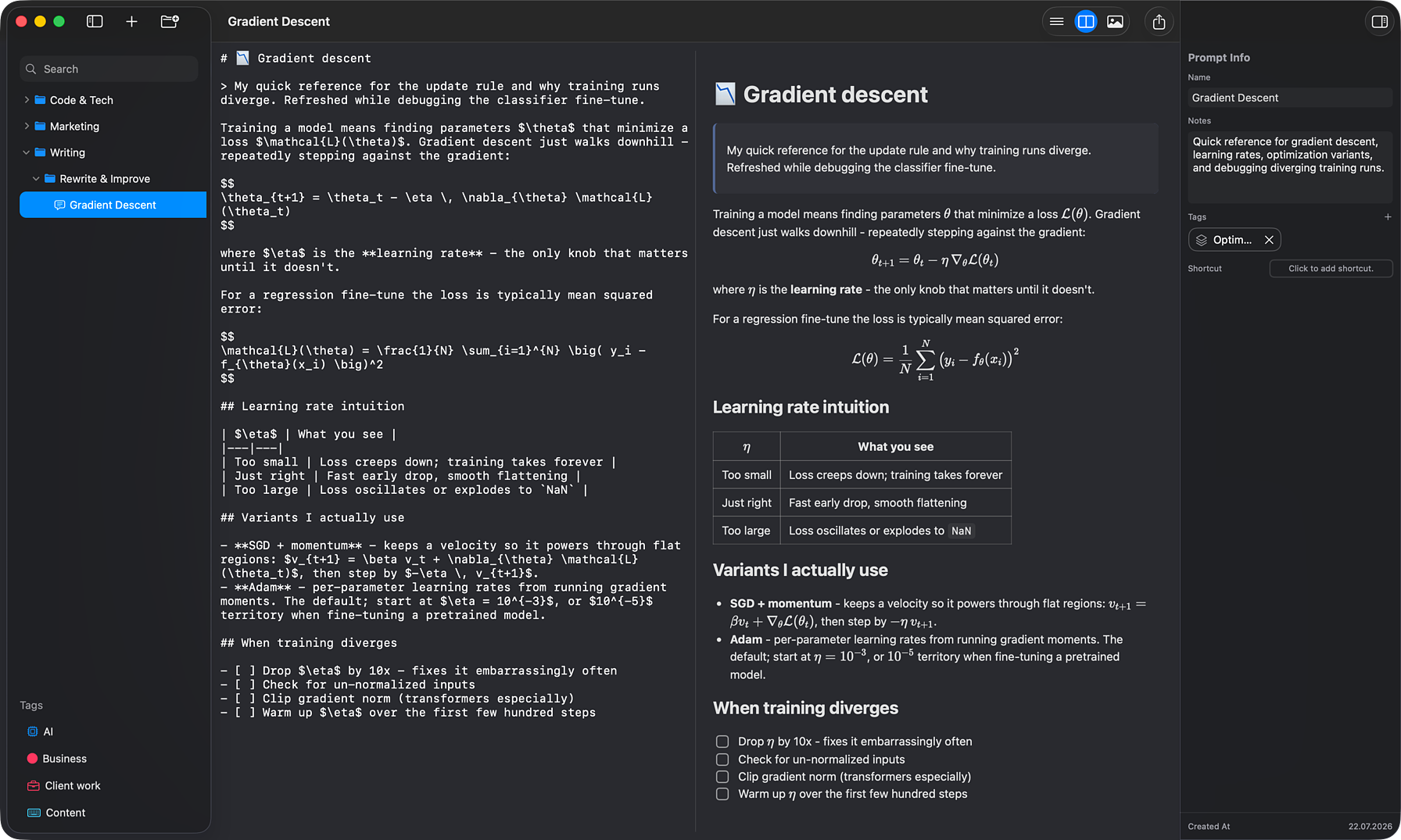
AINoter keeps prompt writing close to prompt reuse. Structure your content with Markdown, check the rendered result, and find the exact text you need before you copy it.
Write in Markdown
Keep long prompts readable with headings, tables, code blocks, math, and diagrams.
Review as you edit
Switch between text, preview, and split view; the preview follows as you scroll.
Find inside a prompt
Search and replace text without losing your place in a long prompt.
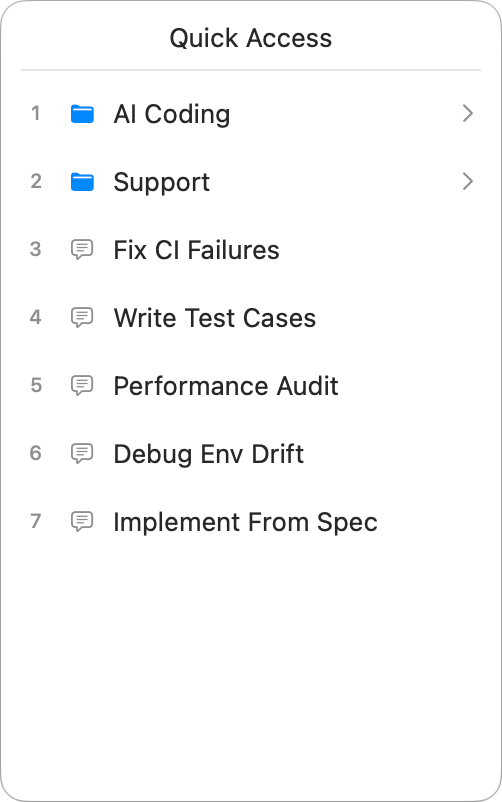
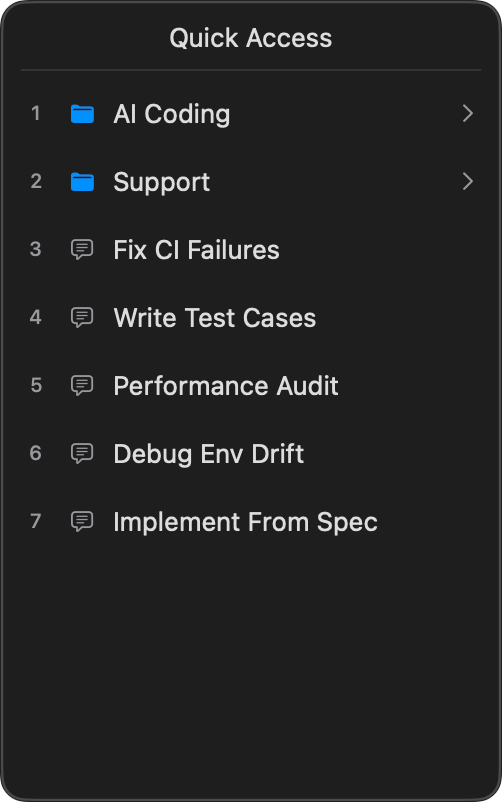
Quick Access Window
Copy prompts without switching apps
Open a small floating prompt picker with a hotkey, navigate folders, and copy the prompt you need straight to the clipboard. It keeps your prompt library available while you stay in ChatGPT, Claude, Gemini, your editor, or any other app.
Open it over any app
Press your Quick Access hotkey without bringing AINoter to the front.
Browse prompts and folders
The floating list mirrors your Sidebar, so the same structure is always ready.
Copy with one key
Press 1-9 to pick an item. Prompts copy to the clipboard and the window closes.
Prompt Manager Features
Everything you need to write, organize, find, and reuse AI prompts on Mac.
Folders & Tags
Keep a clear prompt hierarchy, then filter across it by topic, workflow, or project.
Markdown Editor
Write structured prompts with a live preview — syntax-highlighted code, math, and diagrams.
Quick Access Window
Open a floating window with a hotkey and copy prompts in seconds.
Search & Find
Search the library by title or content, then find and replace text inside long prompts.
Global Shortcuts
Assign shortcuts to prompts and copy without switching apps.
Local & Private
Offline-first and local. No accounts, no cloud, no tracking, and no data collection.
Frequently Asked Questions
Quick answers to common questions about AINoter.